


Ten Tips For Remote Presenters
Your task as a remote presenter (or an event producer that’s assisting a remote presenter) may seem like a walk in the park. After all, there’s no live audience in the room sitting passively, staring vacantly at you onstage. In turn, you get to forego gazing out at a sea of people, causing you anxiety. There’s no need to worry about tripping over your own feet when you walk onto the stage. Still wearing your bunny slippers? No problem! The audience is just viewing your top half anyway.
So yes, there are advantages to presenting remotely, but there is still a host of mistakes that could result in a remote presentation flop. Follow these guidelines to set the stage (pun intended) for an engaging, effective, and professional remote presentation!
Let’s take a second to get on the same page: As you’re preparing to present, your first step must be to define a clear set of objectives. In doing so, you want to focus on what the audience needs. What problem can you solve for them? How will your presentation impact them, changing their actions or thoughts once the presentation has wrapped?
There is no one solution to an impactful presentation. In fact, there are several ways to get and keep the viewers’ attention, present with professionalism, and deliver exceptional quality. Your full kit of presentation tools should be utilized, all while meeting your predefined objectives.

Stop presenting remotely without a remote chance of impact.
– MARK NEVINS
Leadership Advisor, Coach, and Forbes Contributor

Okay! You’re set with your objective and clear on what your audience needs. Let’s hit it out of the park!
Remote presentations are no longer just Zoom or MS-Teams calls with speakers wearing swim trunks and suit jackets while they wing it.
Audiences have come to expect more! Exceed their expectations by following the guidelines below.
Enhance the Lighting and Background
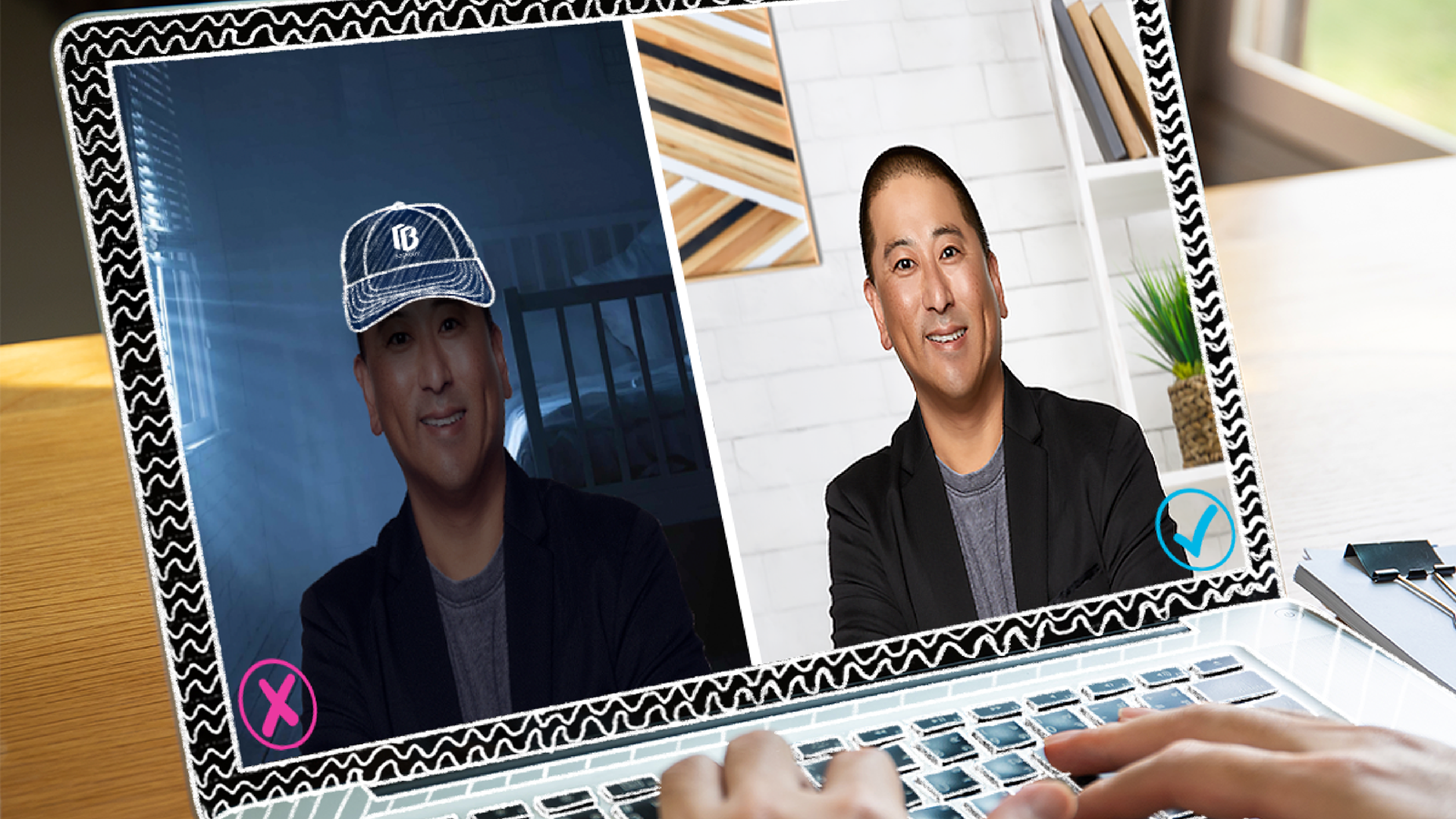
When preparing to set up your camera (let’s assume it’s built into or attached to the top of your monitor), check out the backlighting. Don’t position your camera facing you with the window behind you. People may do this thinking that the pretty tree just outside that window will be a nice backdrop for the audience to enjoy, but you have instead created a glare of light that dims the quality of your image and puts your face in the dark. Shut the blinds/curtains or, better yet, move to a location that doesn’t have a window behind you.
Once you have moved away from the window, what will the audience see in the background? Is the room a mess? Is it too personal, such as a bedroom? Is Spongebob on the TV on behind you? Will a person or pet be in the picture? Compose the shot; be aware of the components you’re framing into the picture. Blur out the background if necessary, but do avoid the software’s virtual background images. Using these could interfere with the outline of your hair or head, distorting their actual shape.
Take Advantage of Branding Opportunities
If you can include branding such as your logo at the corner of your screen, or a frame with the company/event colors and/or graphics, then do it! Are you going casual? Go ahead and wear your company’s logo polo shirt. Will you be taking a sip or two of coffee/water during the presentation (again, casual)? Can you shamelessly use a mug or water bottle featuring your company’s logo?
Face Your Audience
Move your camera to eye level. Perhaps this means you need to place it on top of a stack of books. You ought to be looking straight at your camera lens, not down at it. If you’re looking down at it, your audience is undoubtedly staring up your nose or enjoying an unflattering image of you and your three chins, all while being hypnotized by your ceiling fan.
"Mr, Demill, I'm Ready for my Close-Up!"
Look your best! (Did you just hear your mother’s voice in your head? I did!) Inspect yourself in the mirror before you go on-screen. Wear a color that doesn’t match the wall behind you. Check your teeth and your hair, and straighten your collar or tie. Take off your hat/cap. Your audience doesn’t need to see excessive cleavage or chest hair, so inspect your own neckline. How is your posture? If you have access to one, use a ring light – those are great! They’ll enhance your appearance with flattering light that eliminates shadows.
Look Them in the Eyes
Don’t look at the video of yourself or at the thumbnails of your audience during the presentation. Also, try not to look down at your notes. Make good eye contact by looking into the camera’s lens. This will take some getting used to, but trust me, this will increase your rapport with viewers. They’ll feel like you’re talking directly to them. They’ll feel more connected to you while you present.
Flip the Script
Do you have words or numbers that appear on-screen, such as framed word art hanging on the wall, or books behind you? Are you wearing a shirt with a graphic? Be sure to flip the video horizontally (some camera software will do it automatically, or you may have to flip it yourself such as in Adobe Premiere Pro’s “Effects” menu).
Create That Energy!
Sit up straight! (There’s mom’s voice in our heads again…) Better yet, stand! The energy conveyed when standing is stronger than when sitting. Do not walk around or pace. While sitting, be aware of any nervous-energy movements, such as bouncing one leg, rocking back and forth, or spinning side-to-side in your chair. You likely want to come across energetic, enthused, and interested/interesting, not hyperactive, tense, or anxious.
By the way…don’t snack. Don’t chew gum or mints. Period. ‘Nuff said.
To Teleprompt, or Not to Teleprompt?
Let’s talk teleprompting. You may think using prompters is a mistake because the presentation won’t come across with a natural and sincere delivery, but it does wonders for your presentation’s flow, not to mention your professionalism and credibility. Our team at The B2G has worked with plenty of remote presenters that swore they didn’t need them, and then tried it during rehearsal. Guess what? Now they’ll never go back!
When using a prompter window, you’ll be looking only a few centimeters left or right of the camera, and the audience likely won’t notice. Just be sure to use an event producer that knows how to set up the prompter window so that your eyes aren’t darting left to right while you read.
If you risk saying “ah”, “um”, “uh” and “like” a lot while speaking, teleprompting will help ensure a smooth flow with little or no clumsy hesitation or halts in your presentation.
On a separate note, ask your event production company about the presenter’s screen display options. For example, they can display (for your eyes only – and the producer’s) the current and next slide (or video), while your viewers are still being shown the current slide. This helps speakers feel more comfortable with the flow, since they’re being cued for what’s coming next.
Engage With Your Audience
Take advantage of various opportunities to interact with your viewers. Most of us have suffered through “death by PowerPoint”. With the surge of online and video presentations over the last few years, there has been a significant increase in bad presentations. Rather than a long, stultifying deck, consider tightening it up with ten or less highly impactful slides.
Be active and interesting, but be aware this is about your audience, not your ego. Work with your event production company to “reach through the screen at them” and liven things up! Integrate various options available. Tell the whole story and keep up the momentum with a full presentation “screenplay”, or “script”..
How does a remote presentation script work? As you speak, your event production company controls a smooth presentation flow in the background. For example, they can cut to video, include PowerPoint slides on one side of your screen, then move to your face on full-screen when you’re making a salient point – then they jump back over to the slide view. They can run a banner across the bottom of the screen, poll the audience live as you ask the questions (with instant results displayed on-screen), or show a picture-in-picture on cue, and much more.
Check Your Connection
Communication, as they say, is everything! Be sure your connection is strong and reliable. A weak internet connection can throw a wrench into your entire presentation. Often, when a remote presentation fails, the cause is right there under the remote presenter’s roof.
Take all precautions! Work with the audiovisual expert at your event production company. Test your audio and video thoroughly. Since you’re presenting remotely, plug directly into wi-fi rather than using it wirelessly. Be sure others in the house or office aren’t sharing bandwidth during the presentation, such as playing video games or streaming shows and movies. Restart your router and your entire system before the presentation day.
Your event manager/event producer can monitor how strong your internet connection is during your presentation. Even with all these precautions, you can still encounter connection issues, so the objective here is to mitigate risk. Take your show producer’s advice when they recommend a rehearsal and/or a tech-run through. They have probably done this a lot more than you!
In Conclusion
As you have likely figured out by now, there exists many opportunities to present remotely in a professional, engaging, and interesting manner. Like many of you, I also have first-hand experience watching a speaker make common mistakes. For example:
I recently attended a Zoom meeting with a client’s Board of Directors. The Chairman of the Board had joined us from her sofa. She was discussing details around their upcoming conference while her cat reclined on the back of the couch behind her. During the discussion, he decided it was bath time, and pointed his leg straight up into the air and proceeded to groom himself. It was distracting to say the least! We now have this lovely scene forever archived in our video library. Isn’t that just the cat’s pajamas?